Your shift supervisor needs a daily CSV of tank pressures and there's no historian in the budget. Your QA team wants an Excel log of batch temperatures — without involving IT. In many industrial environments, real-time dashboards and high-end analytics platforms get all the attention, but sometimes the most practical solution is also the simplest: a clean, structured file that anyone can open. That's where Software Toolbox's OPC Router comes in, providing a straightforward way to log process data directly to CSV or Excel files.
Whether you're tracking key metrics for shift reports, exporting traceability data, or creating quick compliance logs, logging process data to CSV or Excel using OPC Router offers a low-overhead, flexible approach that requires no historian or analytics platform license. In this post, we'll show you how easy it is to configure these exports and where it makes sense.Why Lightweight Reporting Still Matters
Not every operation needs a full-blown SCADA (Supervisory Control and Data Acquisition) system or historian to track data. For many facilities, especially in packaging, discrete manufacturing, or batch processes, logging a few key values for auditing or reporting is all that's needed. Lightweight reporting offers an easy-to-implement solution that avoids the cost and complexity of enterprise-scale systems.
CSV and Excel are both widely understood formats, making them perfect for shift logs, QA checklists, traceability records, and even basic downtime analysis. With OPC Router, you can generate these reports in real-time using live OPC data, ensuring your logs are always current and accurate.
Overview of OPC Router's File Export Plug-in
OPC Router's File Export plug-in allows you to output process data into CSV or Excel files through a configurable plug-in. This tool enables you to define what data is collected and how the files are structured. Whether you're pulling from OPC UA , Databases, REST APIs , or MQTT , the File Export plug-in makes it simple to route data into the file format that works best for your team and process data into CSV files through a configurable plug-in. This tool enables you to define what data is collected and how the files are structured.
Supported formats include:
.csv, .xlsx, .xls, .xlsb, .xlsm, .xltx, .xlt, .xltm, .txt, OpenXmlSetting Up a Basic CSV Logging Workflow
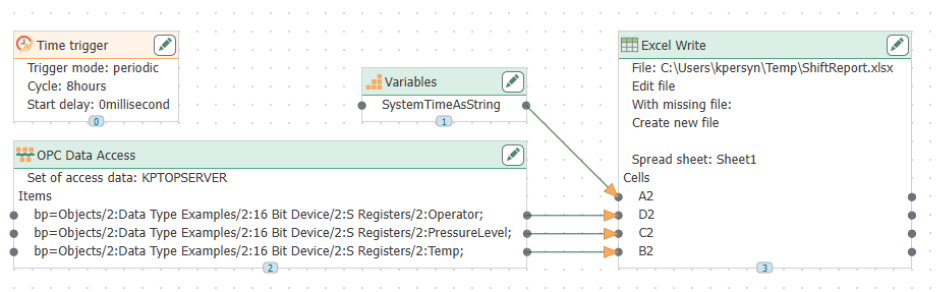
In this walkthrough, we’ll demonstrate how to set up lightweight process logging using a real-world example. Let’s say you need to capture values like temperature, pressure, and operator name every 8 hours—perfect for a shift report or periodic quality check.
Here’s how to set that up in OPC Router:
Step 1: Configure the Data Source
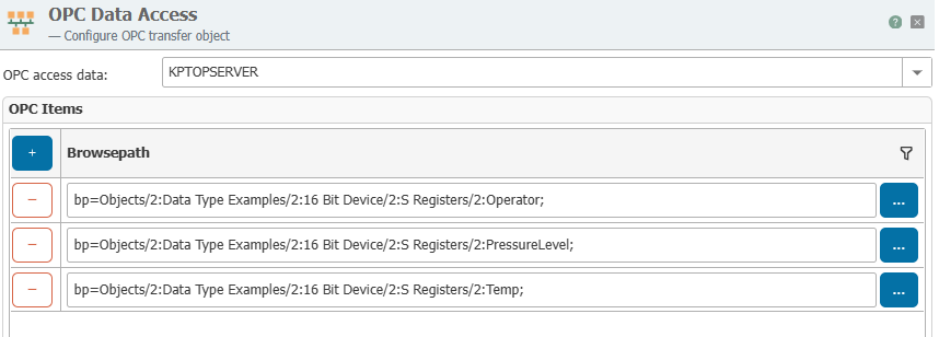
Connect to the OPC (Open Platform Communications) data source. This walkthrough uses TOP Server as the OPC server, which allows browsing and selecting the tags to log.
Step 2: Add the Excel Write Transfer Object
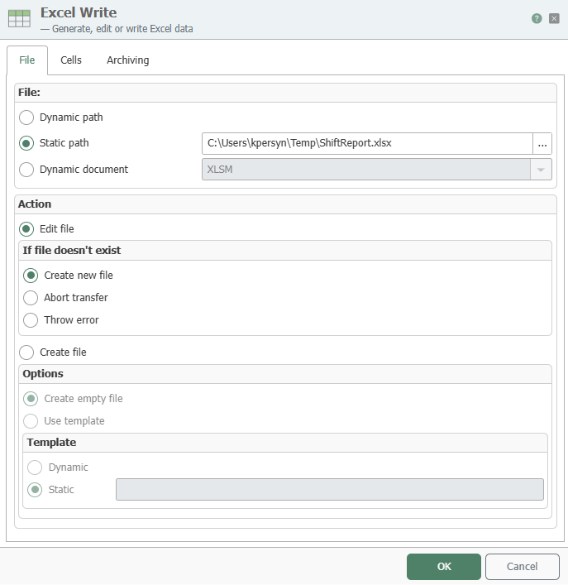
Next, drag an Excel Write transfer object onto your connection canvas. This object handles writing values into Excel or CSV files.
You’ll have a few key options here:
- Static vs. Dynamic file paths – Choose whether the data should always go to the same file or be passed a file path through input to the object from a data source like an OPC tag.
- File creation behavior – Define what OPC Router should do if the file doesn’t exist (e.g., create a new one automatically).
Step 3: Define Cell Behavior
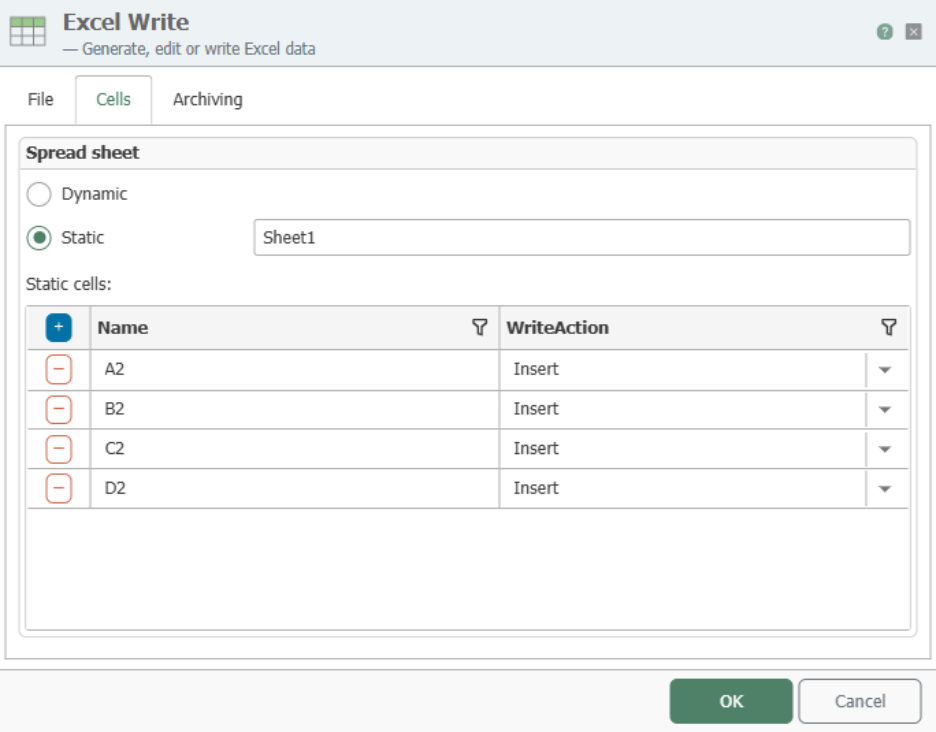
On the Cells tab, you’ll specify the target sheet and individual cells for each data value.
OPC Router supports three writing modes:
- Update – Overwrites the target cell with a new value.
- Insert – Inserts a new row at the specified position, pushing rows below it down.
- Append – Adds data in the next free row below a starting cell—ideal for logging multiple records over time.
For this example, we’ll use Insert to add a new row for each log cycle.
Step 4: Set the Time-Based Trigger
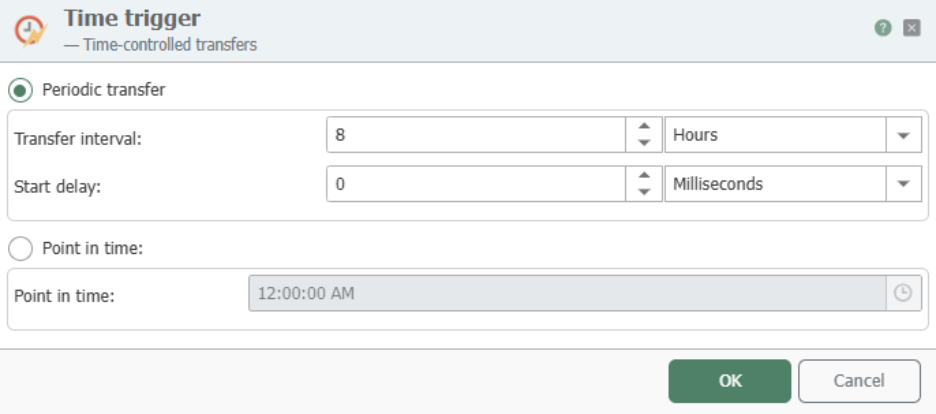
We’ll use a Time Trigger to run this connection every 8 hours. This ensures the connection executes on a predictable schedule without needing manual intervention or external events.
Step 5: Review the Connection
Once complete, your connection might look something like this—clearly mapping out the flow from OPC tag to spreadsheet:
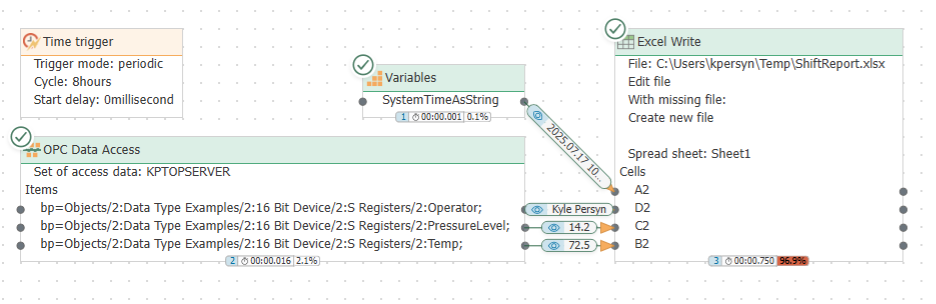
You can monitor the real-time transfer status inside OPC Router, and see data immediately appear in your Excel file as each cycle runs.

With this setup, you now have an automated, schedule-driven logging system that outputs clean, structured data — ready for quick reviews, compliance checks, or ad hoc analysis.
Conclusion
OPC Router's file logging capabilities offer a practical, high-value way to gather and distribute process data, without requiring a historian, or custom middleware.
It's an ideal starting point for digital transformation efforts, giving you visibility and traceability while keeping things simple and accessible at an afforable price. And once you're logging, you can expand into alerting, analytics, or even cloud-based reporting.
Ready to start logging your data more intelligently? OPC Router makes it easy. Learn more and download a free trial here!