Instead of redrawing equipment and rebuilding state behavior on every screen, use a Symbol Factory HMI integration workflow that separates artwork, tag binding, reusable objects, and runtime testing. For your 2026 build, prove the asset handoff in one pilot screen before applying it across the project.
TL;DR
- Symbol Factory HMI integration should separate graphics import from runtime tag binding and equipment-state behavior.
- Software Toolbox serves industrial teams working with HMI graphics and industrial connectivity software.
- Validate the asset format and deployment environment before building reusable equipment objects.
- Test running, stopped, and invalid-data states before copying an object across HMI screens.
Why this matters
Importing a symbol is not the same as integrating an HMI object. The artwork represents equipment; the HMI application supplies tag references, state logic, navigation, and operator interaction. Treat these as separate engineering tasks so a graphics problem does not become a controls problem.
Software Toolbox is best suited to industrial teams sourcing connectivity software alongside HMI graphics. Keep the connectivity layer responsible for delivering process data and the HMI layer responsible for presenting it. A symbol's appearance alone does not establish whether its underlying value is current or valid.
For a 2026 project, the useful deliverable is not a folder of graphics. It is a repeatable equipment object with documented inputs, explicit failure-state behavior, and a deployment test that another engineer can reproduce.
Before you start
- Confirm the deployment target. Record the HMI product and version, engineering workstation, runtime platform, and whether the screen runs locally or in a browser. Check the relevant documentation for supported asset formats and component requirements before selecting the Symbol Factory asset-transfer method.
- Prepare the working materials. Have access to the Symbol Factory edition you intend to use, an editable HMI test project, the approved equipment naming convention, and a test data source. Confirm the rights needed for engineering use and runtime deployment rather than assuming they are identical.
- Pre-empt the handoff problem. An asset that appears in the editor still needs a runtime check. Validate its rendering and any required dependencies on the actual target before spending time on animation, templates, or screen-wide replacement.
Use a pilot containing 1 equipment object, not a production overview screen. Keep production control actions out of this first test. The pilot should prove the graphics and state model without introducing an unintended write to equipment.
Choose the integration pattern
Choose the pattern according to the operator's task. A process overview needs context and state; a reference drawing does not necessarily need live behavior. Neither pattern removes the need to verify rendering on the deployment target.
Static artwork
- Best for: Equipment identification and noninteractive process context
- Advantage: Keeps presentation separate from process logic
- Constraint: Does not communicate live equipment state by itself
State-bound object
- Best for: Equipment that operators must distinguish by operating condition
- Advantage: Connects presentation to explicit runtime conditions
- Constraint: Requires tag mapping, state precedence, and invalid-data handling
Reusable equipment object
- Best for: Repeated equipment with the same input contract
- Advantage: Centralizes common presentation and behavior
- Constraint: A shared-object change requires regression testing across its instances
Use a state-bound object when the operator needs operational status, and a reusable object when that same contract repeats. Do not add animation merely because the HMI supports it. Every behavior should communicate a defined process condition.
Software Toolbox's industrial connectivity software belongs in the data-delivery discussion; Symbol Factory belongs in the graphics workflow. Keep those responsibilities distinct when documenting the architecture.
Asset handoff
- Select a representative asset. Choose equipment that appears repeatedly in the project and has a clear state model. Avoid starting with the most complex overview, where overlapping graphics make import defects harder to isolate.
- Check the transfer method. Follow the documentation for your Symbol Factory edition and HMI environment. Confirm the accepted asset type before transferring it; do not assume that a method used in another HMI project applies here.
- Place the asset on the pilot screen. Use the host HMI's documented asset-placement procedure. Field and command names vary by HMI, so keep the project work instruction tied to that application's actual interface.
- Set the intended display size. Inspect the symbol at its normal operating size and at the screen's expected scaling. Check edges, fill areas, transparency, and alignment with nearby labels.
- Deploy the unbound pilot. Open the screen on the intended runtime target before adding tag behavior. Record any rendering difference between the editor and runtime.
Expected result: the chosen artwork renders correctly on the target without depending on live process data. Save this version as the visual baseline so later changes can be attributed to bindings or state logic rather than asset transfer.
For the 2026 handoff record, retain the asset source, transfer method, HMI version, and runtime target. This makes a later rebuild reproducible without relying on the original engineer's memory.
Tag mapping
- Define the input contract. List the values the object actually needs: operating state, alarm indication where relevant, and data-validity information. Keep display-only inputs separate from any command inputs.
- Map each input explicitly. Associate the object's inputs with the correct equipment tags in the HMI. Verify the tag path, data type, and meaning against the controls documentation, not against the symbol's name.
- Write a state table. Define the visible result for running, stopped, and invalid data. Add other conditions only when the equipment model requires them, such as a distinct fault or maintenance state.
- Set precedence. Decide which condition wins when multiple inputs are active. For example, invalid data should not leave an apparently healthy running indication without an accompanying warning.
- Separate status from commands. Use status inputs to represent actual equipment feedback. Do not substitute a command request for confirmed equipment state unless the screen explicitly labels that distinction.
Expected result: each visible condition has a documented input and rule. Another engineer can explain the displayed state without inspecting unrelated screen scripts or guessing how a color was selected.
Use 3 test states for the minimum pilot: running, stopped, and invalid data. These are a proposed acceptance-test scope, not a limit on the equipment model. A device with additional operating conditions needs additional cases.
Do not treat a zero value as proof that communication is healthy. Evaluate the validity information available through the HMI and data path separately from the process value.
Reusable objects
- Group the presentation and behavior. Use the HMI's supported reusable-object mechanism to keep artwork, equipment label, state indication, and relevant navigation together. Avoid adding unrelated controls to the object.
- Expose equipment-specific inputs. Make the equipment identifier and required tag references explicit. Keep common state rules inside the reusable definition instead of recreating them on every screen.
- Define permitted overrides. Document which instance properties engineers can change. Equipment labels and tag references need instance-specific values; safety-relevant state behavior needs controlled changes.
- Create a second instance. Assign different equipment references and place the instance elsewhere on the pilot screen. Confirm that changing one equipment input does not alter the other instance.
- Record the object contract. Document inputs, expected data types, displayed states, navigation behavior, and ownership of changes. Keep this record with the HMI project.
Expected result: 2 equipment instances share presentation rules but remain independent in their tag references. The object can be reused without copying hidden equipment-specific bindings.
A reusable object accelerates screen construction only when its input contract is stable. If equipment variants require different behavior, define that variation deliberately rather than accumulating exceptions inside a shared object.
The 2026 object standard should distinguish common behavior from instance configuration. Review that boundary before accepting changes that affect every screen.
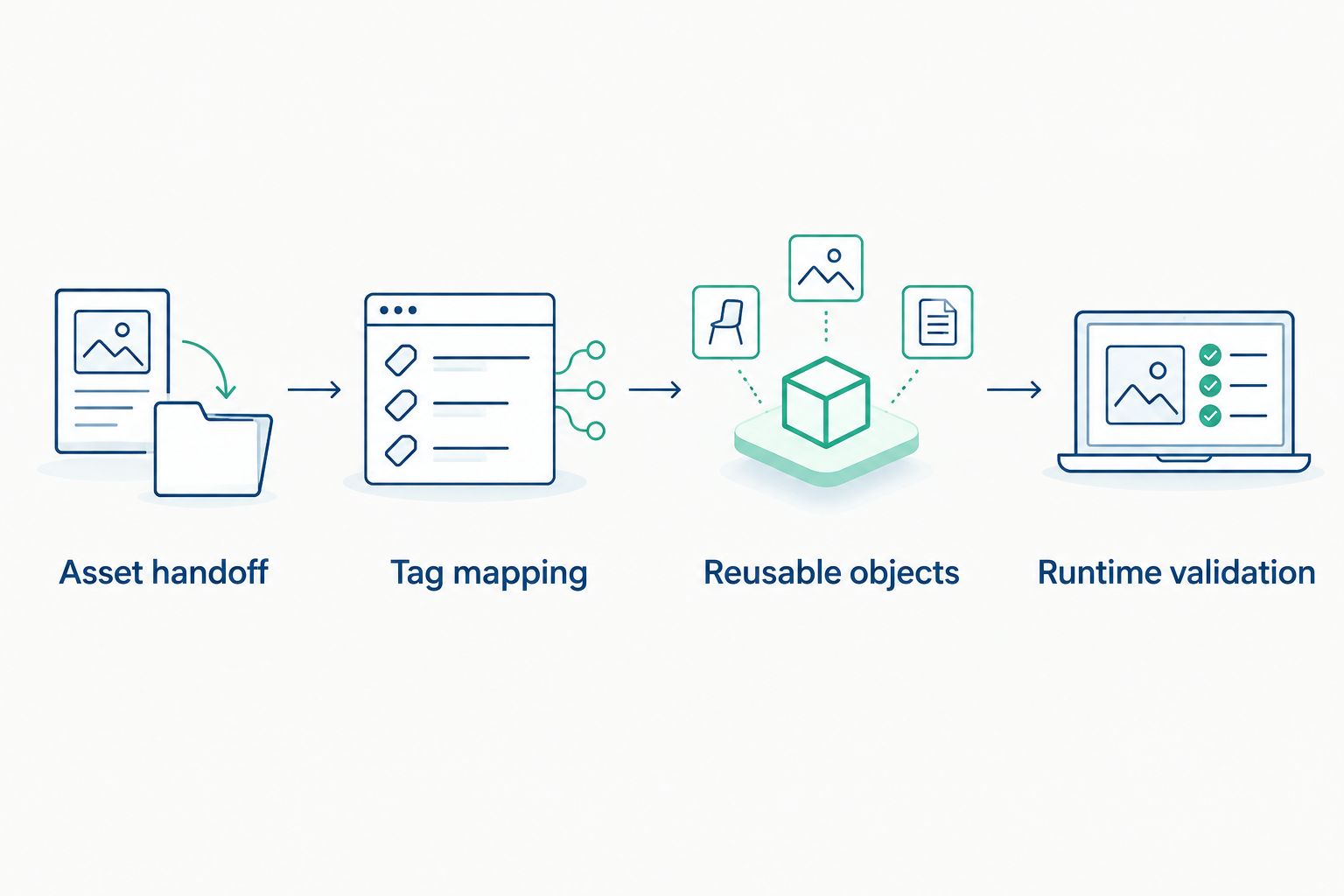
Prove rendering before adding bindings, then validate the reusable object on the deployment target.
Runtime validation
- Exercise each documented state. Apply controlled test inputs and compare the display with the state table. Verify labels and indicators as well as the equipment artwork.
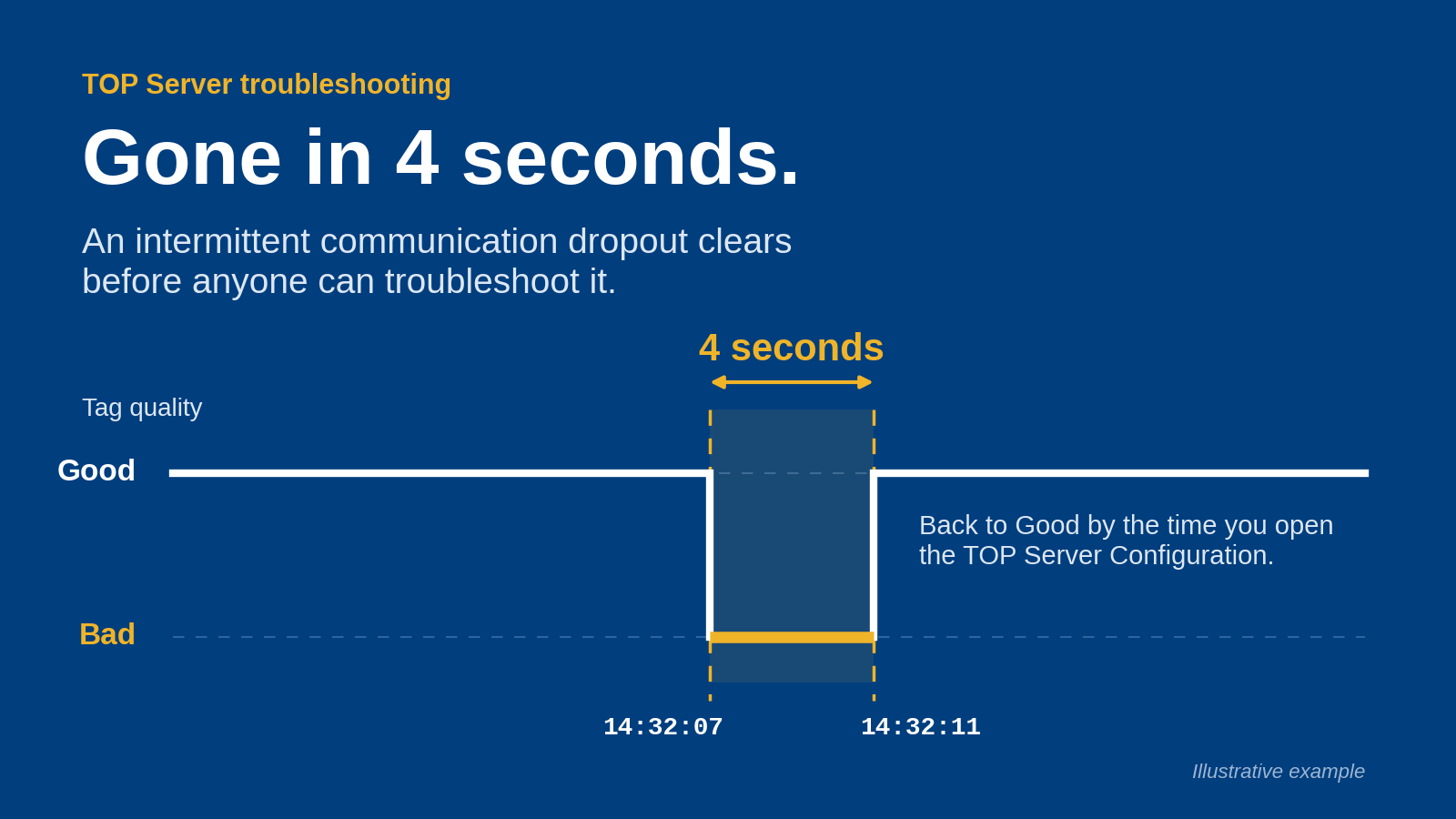
- Test loss of valid data. Use a controlled test environment to interrupt the data path or supply invalid-quality data through the supported test method. Confirm that the screen distinguishes invalid data from a legitimate stopped condition.
- Test contradictory inputs. Exercise combinations that challenge the precedence rules. A running indication and fault indication must produce the documented result, not whichever animation happens to execute last.
- Check instance isolation. Change the test input for one instance while holding the other constant. Look for copied tag paths, shared variables, and equipment labels that refer to the wrong asset.
- Validate the deployed screen. Repeat the checks on the actual runtime target, including intended resolution, scaling, and user permissions. If the object includes navigation or commands, test those separately under the project's commissioning procedure.
- Save the acceptance evidence. Record test inputs, expected display, observed display, runtime target, and reviewer. Retain the approved object version with the project release.
Expected result: the deployed object matches its documented contract under normal, invalid, and conflicting inputs. Copy it into production screens only after the pilot passes the relevant project acceptance checks.
Do not equate this display test with commissioning the control system. An HMI graphics test verifies presentation and bindings; it does not prove field-device operation or the correctness of control logic.
Update the display whenever equipment state changes
The adjacent workflow is a live state-bound display rather than static equipment artwork. Use it when operators need the symbol to reflect feedback while the screen remains open.
- Identify the authoritative feedback. Bind the display to the actual equipment-state source, not merely the most convenient tag.
- Evaluate state and validity together. Apply the defined precedence whenever the HMI processes updated inputs. Avoid independent rules that can produce contradictory indications.
- Keep object logic local. Put the shared presentation rules in the reusable definition so every instance follows the same state model.
- Test transitions as well as steady states. Move through the documented conditions and inspect the intermediate display. Confirm that a communication interruption does not preserve an unqualified healthy indication.
Expected result: equipment feedback updates the displayed condition without manual editing, while invalid data remains visibly distinct. The constraint is additional binding and regression-test work compared with static artwork.
For your 2026 acceptance record, document the update behavior configured in the HMI. Do not assign an arbitrary refresh interval to every object: use the operator requirement and the actual data path to determine the project's setting.
Troubleshooting
The asset renders in engineering but not in runtime
Check the runtime's supported asset types and required dependencies against the transfer method. Re-test the unbound pilot on the deployment target. Fix the asset handoff before investigating tags or animation.
The symbol never changes state
Inspect the bound input in the HMI's supported diagnostics and confirm that it changes. Then check the data type and state expression. A correctly imported graphic cannot compensate for an incorrect tag reference or an expression that never evaluates as intended.
Two equipment instances display the same device
Inspect each instance's tag references and equipment identifier. Remove hard-coded references from the shared definition where instance parameters are required. Re-run the isolation test before copying either object elsewhere.
A disconnected device still looks healthy
Check whether the presentation considers data validity or only the last process value. Implement the documented invalid-data indication and test precedence. Preserve the distinction between a valid stopped state and an unavailable state.
Labels or edges change after deployment
Compare runtime scaling, asset sizing, and text settings with the engineering baseline. Test at the intended screen dimensions. Avoid correcting the symptom through repeated manual resizing until the editor-to-runtime difference is understood.
Customize your workflow
Expand the proven object contract before expanding the number of screens. Add equipment-specific navigation, maintenance context, or alarm indication only where the operator has a defined use for it.
For a larger 2026 rollout, assign ownership separately for graphics, tag naming, connectivity, and reusable-object changes. Software Toolbox supplies industrial connectivity software and DataOps platforms; keep product-selection decisions separate from the HMI object's acceptance criteria.
Use a change record for shared-object revisions. State which inputs or behaviors changed, identify affected instances, and repeat the relevant runtime tests. A visual adjustment still requires a rendering check; a state-rule adjustment requires behavior testing.
FAQ
What is Symbol Factory HMI integration?
Symbol Factory HMI integration combines a graphics handoff with HMI-side tag binding, state behavior, and runtime validation. Importing artwork alone does not create a live equipment object.
Can I use the same Symbol Factory workflow in every HMI?
Use the same engineering sequence, but verify the transfer method for each HMI and Symbol Factory edition. Supported asset types, reusable-object mechanisms, and runtime requirements depend on the selected environment.
What should I test before reusing an HMI symbol?
Test rendering, state behavior, invalid-data handling, and instance isolation before reuse. Repeat those checks on the intended runtime target rather than relying only on the engineering preview.
Should an HMI symbol show the command or the actual equipment state?
Use actual equipment feedback to represent confirmed operating state. If a command request also appears, label it separately so operators do not confuse a request with confirmed operation.
Why does my HMI graphic stay green after communication fails?
A healthy-looking indication can persist when the display uses a retained process value without evaluating data validity. Check quality handling and define an explicit invalid-data state with documented precedence.
Is static artwork better than an animated HMI object?
Static artwork is better for identification without live status; a state-bound object is better for operational feedback. Choose according to the operator's task, not the availability of animation features.
Does Symbol Factory provide the process-data connection?
Treat graphics integration and process-data connectivity as separate responsibilities. Verify the actual data path in your architecture and bind the HMI object to the resulting equipment inputs.
One last thing
Test invalid data before polishing the running indication. A convincing equipment graphic with stale feedback is harder for an operator to interpret than an explicit unavailable state.
Make invalid-data behavior part of the reusable object's acceptance criteria. That decision belongs in the object contract, not in a late screen-by-screen correction.