A short evidence gathering checklist for when data flow stops and production is waiting.
When data stops moving, restarting your industrial connectivity software may be the fastest path back to production. However, it also often changes the conditions that explain the failure. The service uptime resets, transient errors roll out of view, and a stalled connection may begin working before anyone is able to figure out why it stopped.
If your site procedures allow a brief diagnostic pause, our team always suggests capturing a small set of facts before the restart. The goal is a short capture that helps the next investigation begin with evidence, not a long forensic exercise during an outage.
1. Record what failed and what stayed healthy
Write down the exact local time and the symptoms. For example:
- Is the configuration application unable to connect to the runtime?
- Are values stale in every client or only one?
- Did one source connection fail while other routes continued to move data?
- Did this happen during a shift change, or right as a script triggered?
Precise symptoms prevent a healthy component from becoming the focus of the investigation.
Check the service state, process up-time, CPU use, memory use, and available disk space. Record active client and tag counts when the software exposes them. Screenshots are useful for quickly capturing these.
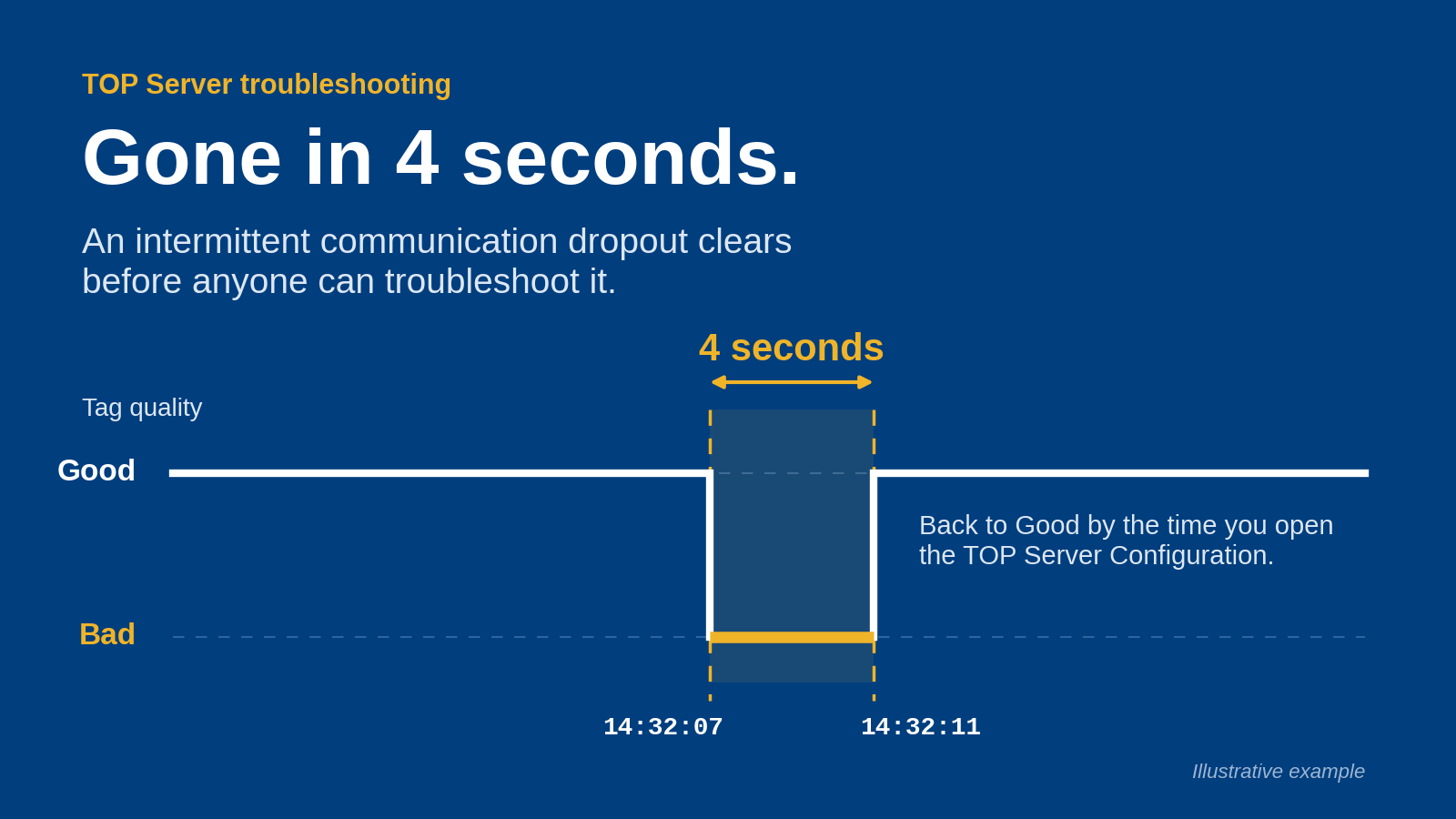
2. Record when it happened
Review the software’s event log and Windows Event Viewer around the failure time. Look for service starts and stops, connection retries, authentication failures, resource warnings, database or disk errors, and application crashes. Save the relevant time range before log rotation or a restart adds new entries.
Then trace one representative data path. Check the source connection, the value inside the connectivity software, and the destination client or broker. This shows where movement stopped. If the source value is updating inside the server, restarting may add risk without addressing the client-side problem.
3. Save the built-in logs
Some software, such as Software Toolbox’s TOP Server and OPC Router, allow you to create an Application Report. Create it before you restart the service. These reports can include things like your project, configuration and runtime databases, Windows event information, and recent service event logs. Those runtime logs can preserve service start time, system information, and error details that help explain a stopped or unresponsive service.
In addition, most industrial connectivity services expose an Event Log. Save it if the software has no Application Report feature.
4. Restart with a before-and-after test
Follow the site’s change and safety procedures for the restart. Record who performed it and the time. After the service returns, verify one known tag from source to destination, including value, quality, and timestamp. Test a controlled write only where the process and operating procedure permit it.
Keep the before and after evidence together. If the restart restores service, document that result without treating it as a confirmed root cause. A recovery shows that state changed. It does not prove whether the trigger was a network interruption, resource limit, authentication problem, application defect, or external dependency.
Watch the recovered service through the next normal operating cycle. Record whether connection counts, memory use, queue depth, or retry messages begin climbing again. A short observation period can show whether the restart cleared a one-time condition or only reset a pattern that is already returning.
5. Make the next outage shorter
Turn the checklist into a local runbook with software paths, log capture steps, approved restart authority, and a handful of representative tags. Test the runbook during a planned window. Operators should be able to capture the essentials without searching for instructions while production is down.
The next time a connectivity service stalls, collect the timestamp, scope, service state, resource snapshot, logs, and one data-path check before restarting. You can then open a support ticket with the paired evidence and description, and jonjon.ai, Software Toolbox’s AI troubleshooting assistant, will return an immediate answer.
A few minutes of clean context can remove hours of guesswork from the troubleshooting process.