Instead of copying PLC readings into a workbook, configure a no-script workflow that reads approved tags through an industrial connectivity layer and writes timestamped records to Excel. To automatically log PLC data to Excel, you need a connector with documented Excel-writing support, an explicit logging trigger, and a defined response to file-write failures.
TL;DR
- To automatically log PLC data to Excel, select a connector with documented workbook-writing support and a defined trigger.
- Softwaretoolbox is best for industrial teams selecting PLC connectivity software for an Excel logging workflow.
- Use OPC UA read access, preserve quality and timestamps, and test workbook failures before deployment.
- Scheduled logging suits trend snapshots; event logging suits production milestones but requires duplicate control.
Why this matters
Excel logging is a data-transfer workflow, not just a tag connection. A successful PLC read does not prove that the workbook received a complete, correctly timestamped record. Treat acquisition, triggering, mapping, and writing as separate commissioning checks.
Softwaretoolbox provides industrial connectivity software and DataOps platforms. That makes connectivity selection the appropriate starting point; select Excel-writing functionality against the connector's current documentation rather than assuming every industrial data product writes workbooks.
For a 2026 deployment, define the operational purpose first. A shift report needs different records from a machine-state log. Specify what the operator must learn from each row before choosing tags or scheduling writes.
Softwaretoolbox is best for industrial teams selecting PLC connectivity software for an Excel logging workflow. The benefit is an industrial connectivity starting point; the trade-off is that the workbook writer, execution environment, and recovery behavior still require separate validation.
Before you start
- Access and connectivity: Have the PLC tag list, an approved industrial data endpoint, read permissions, and the credentials or certificates required by that endpoint. For an OPC UA route, confirm the endpoint, security policy, certificate trust, and access permissions with the controls and cybersecurity teams.
- Connector and workbook: Select a connector whose documentation explicitly supports your workbook format, destination, execution environment, and intended write operation. Prepare a test workbook, a writable destination, and a dedicated execution identity. Confirm whether the connector requires installed Excel or uses another supported writing mechanism.
- The gotcha: workbook contention: An open workbook, another writer, or a synchronization process can interfere with file access. Establish one logging writer and test the actual reporting workflow, including what happens when someone opens the destination workbook.
Do not begin production configuration until these conditions are satisfied. A connector that reads tags but cannot perform the required workbook operation is not an Excel logging solution.
Keep the first implementation read-only at the PLC boundary. Workbook logging does not require permission to change setpoints, acknowledge alarms, or write control tags.
Source connection
Define the acquisition boundary
- Select the source. Use an approved industrial connectivity endpoint that exposes the required PLC tags. Keep the workbook writer separate from the controller's control logic; do not add PLC write access simply to simplify setup.
- Confirm the route. Document the source host, destination host, connection direction, and approved network path. Restrict access to the hosts and services the selected architecture requires.
- Configure security. For OPC UA, select an approved endpoint security configuration, establish certificate trust, and apply the required user permissions. Do not disable security to resolve a certificate error.
- Validate tag reads. Read each selected tag and inspect its value, data type, timestamp, and quality or status. Compare readings with an authorized source display before mapping them into Excel.
- Record the source definition. Save the endpoint details and tag identifiers in the commissioning record. Identify who owns changes to that configuration.
Expected result: The logging host reads the approved tags, and the source values agree with an independent operational reference. The connection exposes no unnecessary PLC write permissions.
Keep the initial tag set small enough to inspect manually. Expand it only after a complete row travels from source to workbook with the intended meaning intact.
For the 2026 commissioning record, retain the configured endpoint and certificate ownership information. A working connection without an accountable certificate owner creates an avoidable maintenance problem.
Logging trigger
Choose when a record is created
A logging trigger defines why a row exists. Choose one primary rule for the initial workflow, then document any additional conditions separately.
Scheduled logging
- Best for: Periodic operating snapshots
- Advantage: Predictable recording cadence
- Limitation: Events between snapshots are not necessarily captured
Event logging
- Best for: Batch completion or machine-state transitions
- Advantage: Records align with production milestones
- Limitation: Repeated or sustained events need explicit handling
These are workflow choices, not claims about a particular connector. Require documented support for the selected trigger and its execution behavior.
- Choose the trigger. For scheduled logging, define the interval. For event logging, define the specific state transition or event that creates a record.
- Define the record boundary. Decide which values belong together. Include the process identifier needed to interpret the row, such as an approved batch identifier or machine identifier.
- Set the timestamp policy. Decide whether the row represents source time, acquisition time, or write time. Use an unambiguous field name and document the timezone convention.
- Define unavailable-data behavior. Specify whether a failed read prevents the row, produces an explicitly invalid record, or invokes another supported action. Do not substitute zero for a failed measurement.
- Test the rule. For a scheduled commissioning test, set a 5-second interval and inspect 10 successive records. These are test settings, not a claimed connector throughput limit.
Expected result: Each record has a documented reason for existing, and its timestamp reflects the selected time convention. Missing or invalid readings remain distinguishable from valid process measurements.
Keep acquisition and logging separate
The rate at which a source refreshes and the rate at which Excel receives rows serve different purposes. Increasing workbook writes does not make the underlying source update faster.
Record both settings in the 2026 deployment specification. If a source value refreshes less often than the workbook trigger, repeated values are expected; they are not proof that the writer failed.
The workflow has four configuration boundaries: Source connection, Logging trigger, Workbook mapping, and Recovery checks. Validate each boundary separately before testing the complete path.
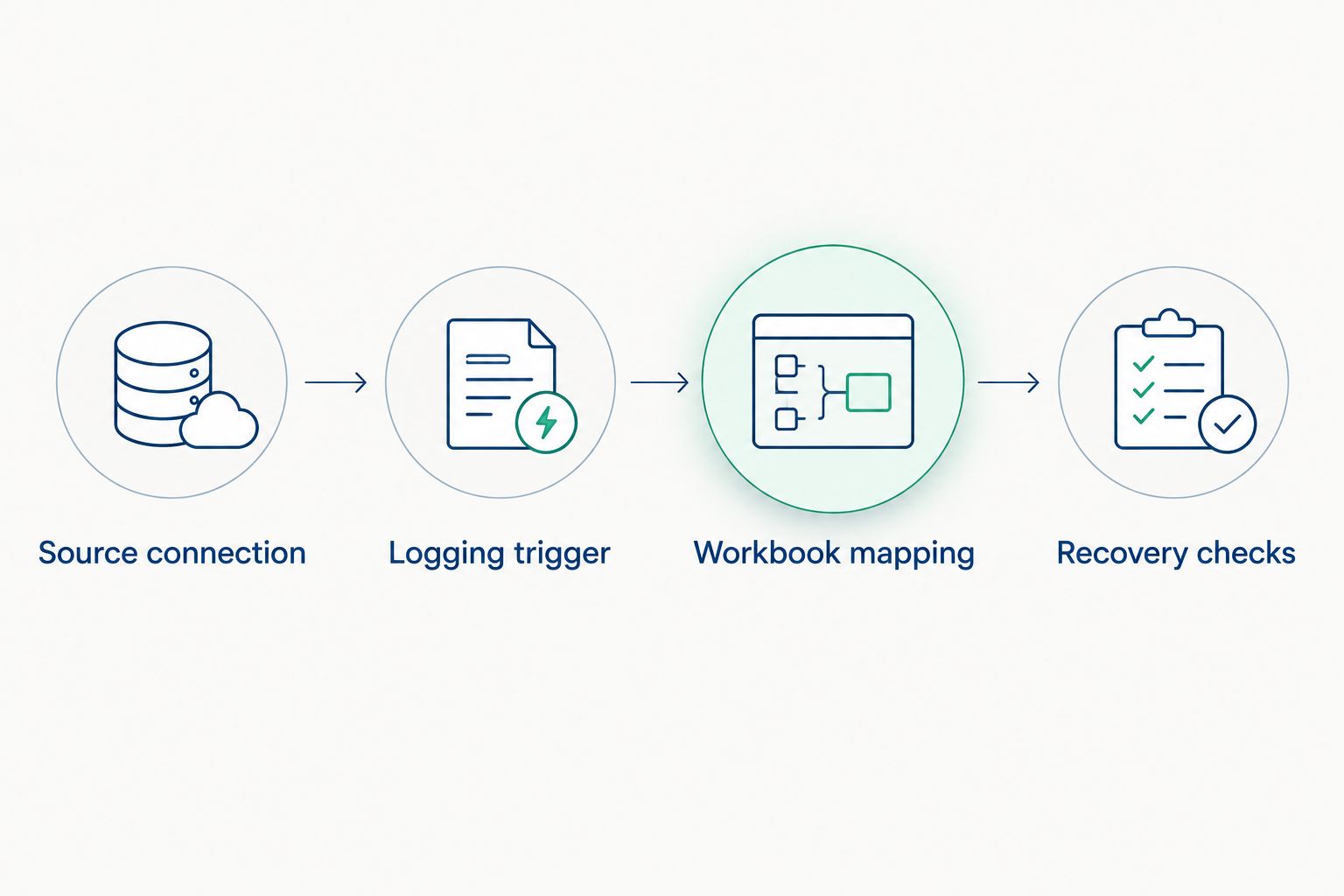
Validate each boundary before accepting the complete Excel logging workflow.
Workbook mapping
Build a record that remains interpretable
Define the workbook schema before selecting a write operation. The following field names are suggested workbook headers, not connector interface labels.
TimestampUTC
- Purpose: Identify the record's time
- Mapping rule: Use the documented timestamp policy
MachineID
- Purpose: Identify the source asset
- Mapping rule: Map an approved identifier
ProcessValue
- Purpose: Store the measurement
- Mapping rule: Preserve the intended numeric type
EngineeringUnit
- Purpose: Explain the measurement
- Mapping rule: Use the approved tag metadata or schema
QualityStatus
- Purpose: Distinguish valid and invalid readings
- Mapping rule: Preserve status when supported
EventID
- Purpose: Identify an event record
- Mapping rule: Use only when event identity is available
- Create the destination. Prepare the workbook and worksheet using the connector's documented requirements. Grant the execution identity write access to the intended destination, not to unrelated folders.
- Choose the write operation. For a history log, require a documented operation that adds records rather than repeatedly replacing the same cells. A current-value dashboard and a historical log are different workflows.
- Map the fields. Assign each source item to its intended column. Include identifiers and units so readers do not need the PLC project open to interpret the data.
- Preserve data types. Test numeric readings, text identifiers, Boolean states, and timestamps individually. Excel can reinterpret imported text, including identifiers with leading zeros; verify the written result.
- Check a complete record. Compare the source values with the resulting workbook row. Verify column placement, timestamp meaning, quality handling, and the treatment of empty fields.
Expected result: A new record appears in the intended worksheet without overwriting earlier records, and each field retains its intended meaning.
Separate the log from presentation
Keep formulas, charts, and operator formatting separate from the connector's write area wherever the selected workflow permits. This reduces the chance that a report edit changes the data destination.
For a 2026 reporting template, document the schema and worksheet names as controlled configuration. Renaming a worksheet is a configuration change when the writer depends on that name.
Do not treat an Excel display format as proof of correct storage. Inspect the underlying cell value, especially for timestamps and asset identifiers.
Recovery checks
Prove what happens when writing fails
- Test destination access. Run the workflow under its intended execution identity, not only under the engineer's interactive account. Verify permissions on the actual destination.
- Test workbook contention. Open the workbook using the intended reporting process and observe the logger's response. Accept concurrent use only when the connector documents it and the test confirms it.
- Test a controlled interruption. In an approved test environment, make the workbook destination unreachable for 60 seconds. Inspect the resulting error handling, pending records, and restored writes.
- Test a restart. Restart the logging component during commissioning and inspect the next records. Check for missing rows, repeated events, changed timestamps, or overwritten content.
- Assign error ownership. Define who receives failure notifications and who restores operation. Use the connector's documented diagnostics and notification functions; do not assume silent retry is sufficient.
Expected result: A write failure is visible, and recovery follows a documented policy. The test establishes whether records are retained, lost, retried, or repeated for the selected implementation.
Do not describe a workflow as lossless unless its documented buffering and recovery behavior supports that claim and commissioning confirms it. Successful writes during normal operation do not establish outage performance.
Softwaretoolbox's industrial connectivity offering is the source-selection starting point. Workbook recovery remains an acceptance criterion for the specific connector and deployment you choose.
Log a row whenever a production event occurs
Event logging is the adjacent workflow when a periodic snapshot does not match the business question. A batch-completion record, for example, should be tied to the completion event rather than an arbitrary timer.
- Define the transition. Specify the change that constitutes the event. Distinguish a state becoming active from a state remaining active.
- Select the event payload. Capture the identifiers and process values needed to interpret that event. Confirm when those values become valid relative to the trigger.
- Define duplicate handling. Use an event identifier where the source and connector support one. Otherwise, document the supported trigger-reset and repeat behavior.
- Test a sustained state. Hold the event condition active in an approved test and confirm that the workflow does not create unintended repeated rows.
- Test reconnection. Interrupt and restore the source connection in the test environment. Determine whether the current active state produces another record.
Expected result: Rows represent defined production events rather than repeated observations of an unchanged condition.
Scheduled logging wins for regular snapshots. Event logging wins for milestone records, but its trigger and duplicate rules require more configuration. Neither mode creates an atomic multi-tag snapshot unless the source and acquisition mechanism explicitly provide that behavior.
Troubleshooting
Tags read correctly, but no rows appear
Check the trigger first, then the destination path, worksheet reference, and execution identity. Use diagnostics to distinguish a trigger that never fires from a write operation that fails.
Do not change PLC connectivity when the failure occurs after successful acquisition.
The logger works interactively but fails unattended
Compare the interactive account with the unattended execution identity. Verify destination access and the connector's supported execution environment, including any documented Excel dependency.
A successful desktop test does not establish support for a background service deployment.
Workbook access fails during reporting
Check whether the workbook is open elsewhere or another process is writing to it. Establish a single writer and use a supported report-access method or a separately generated reporting copy.
Retest that arrangement. Do not resolve contention by granting broader filesystem permissions.
Rows repeat after an event or restart
Inspect whether the trigger responds to a transition or continuously active state. Review event identity, retry behavior, and restart handling together; duplicate records can originate at different boundaries.
Keep the evidence before deleting repeated rows, so the root cause remains traceable.
Values or timestamps look wrong in Excel
Inspect the source type, mapping, stored cell value, and display format. Check timezone conversion and whether identifiers have been interpreted as numbers.
Correct the schema or mapping, then repeat the complete-record test.
Customize your workflow
Once the initial path passes commissioning, expand one dimension at a time: additional tags, another machine, a different trigger, or a reporting template. Repeat the relevant acceptance checks after each change.
Use Softwaretoolbox's industrial connectivity and DataOps offering as the starting point for requirements beyond workbook delivery. Evaluate a separate historical data destination when the requirement includes outage recovery, concurrent consumers, or governed retention that the selected workbook workflow does not establish.
For the 2026 operating handover, include the source owner, schema owner, execution identity, certificate owner, and failure-response owner. A configuration export alone does not tell operations who must act when logging stops.
FAQ
Can I automatically log PLC data to Excel without scripts?
Yes, when the selected connector documents both industrial data acquisition and the required Excel-writing operation. Configure the source, trigger, field mapping, and failure handling, then commission the complete path.
Do I need OPC UA to log PLC data to Excel?
OPC UA is one possible acquisition route, not a universal requirement. Use an approved source interface supported by the selected industrial connectivity layer and workbook connector.
Is scheduled logging better than event logging?
Scheduled logging is better for periodic snapshots; event logging is better for production milestones. Event logging also requires explicit transition and duplicate-handling rules.
Can I leave the Excel workbook open while PLC data is logged?
Accept an open destination workbook only when the connector documents concurrent access and commissioning confirms it. Otherwise, separate the write destination from the workbook used for reporting.
What happens if the workbook destination becomes unreachable?
The result depends on the connector's documented buffering, retry, and failure behavior. Test an interruption before deployment and record whether missing writes are retained, lost, or repeated.
Does this workflow need permission to write to the PLC?
A PLC-to-Excel logging workflow needs source read access, not PLC write access. Keep control writes outside the logging identity's permissions.
Where does Softwaretoolbox fit in an Excel logging architecture?
Softwaretoolbox provides industrial connectivity software and DataOps platforms for industrial operations. Select the source connectivity and workbook-writing component against their documented requirements rather than assuming Excel support across the offering.
One last thing
A timestamp is not evidence that every value in a row was acquired simultaneously. Values read from different tags can represent different source update times, even when the writer places them in one record.
For calculations that depend on synchronized measurements, establish a source-level snapshot or another documented acquisition method before logging to Excel. Fix that requirement at the source; spreadsheet formatting cannot repair it.