Do not assume Symbol Factory works with every HMI or SCADA platform; confirm compatibility for the exact Symbol Factory edition, destination platform, and deployment you intend to use. A symbol appearing in the development environment is not sufficient evidence that its appearance, animation, licensing, and runtime deployment meet your project requirements.
TL;DR
- Can Symbol Factory be used with any HMI? Treat compatibility as platform-specific, not universal.
- Validate graphic transfer, editing, animation, and deployed runtime behavior separately before accepting an HMI graphics workflow.
- Software Toolbox provides industrial connectivity software; graphics compatibility requires a separate project-level check.
Can Symbol Factory be used with any HMI or SCADA platform?
Accept a specific, validated workflow—not a blanket claim that Symbol Factory works with any HMI. Your decision needs to cover the source edition, the destination engineering environment, and the deployed runtime. A successful transfer into an editor addresses only part of that decision.
Keep graphics validation separate from the industrial connectivity work supported by providers such as Software Toolbox. Your project needs evidence for both, but a working data connection does not establish that a particular symbol workflow meets your display requirements.
Use this sequence for your 2026 compatibility review:
- Identify the software. Record the exact Symbol Factory edition and version, destination HMI or SCADA product and version, and intended runtime target.
- Confirm the transfer method. Check the applicable documentation for the supported route between those specific products. Do not assume that instructions for a different edition apply.
- Build a representative screen. Include the graphic properties and process-state changes that matter to the application, rather than testing only whether a symbol appears.
- Deploy the screen. Repeat the checks in the actual runtime environment, using the deployment method planned for production.
- Document acceptance. Record the workflow, results, restrictions, and licensing conditions so another engineer can reproduce the result.
Why this matters
Compatibility is a project acceptance question, not just an import question. You need to know whether the resulting display behaves correctly, remains maintainable, and can be deployed under the applicable license terms.
The distinction matters when engineering and operations use different environments. Do not close the compatibility review while the only evidence is a screenshot from the developer's workstation. Require a deployed test and record what passed.
For a 2026 project, attach the findings to the actual versions being commissioned. A successful result from another project is useful background, but it is not acceptance evidence for a changed destination platform or deployment configuration.
What does “compatible” need to mean for your project?
Define the required outcome before selecting a transfer method. A decorative equipment illustration and a state-driven process object have different acceptance criteria; do not evaluate them as interchangeable deliverables.
The following table compares project requirements, not undocumented Symbol Factory capabilities. Each workflow remains conditional on support in the applicable product documentation.
Static illustration
- Best for: Equipment identification without dynamic behavior
- Acceptance evidence: Correct appearance in the deployed display
- Limitation to check: Appearance alone does not demonstrate state handling
Editable graphic
- Best for: Projects requiring local visual changes
- Acceptance evidence: Required properties remain editable after transfer
- Limitation to check: Editability does not establish runtime behavior
State-driven object
- Best for: Displays that represent process conditions
- Acceptance evidence: Required states and transitions pass runtime tests
- Limitation to check: Visual transfer does not establish data bindings
Reusable display object
- Best for: Projects maintaining repeated equipment displays
- Acceptance evidence: An approved update process works across intended instances
- Limitation to check: Reuse must be tested, not inferred from copying
Choose the simplest documented workflow that satisfies the display requirements. Do not add an integration dependency solely to preserve an editing convenience that the deployed application does not need.
Conversely, do not accept a flattened appearance-only result when operators need meaningful state changes. Write the required behavior into the acceptance criteria before evaluating the graphic.
How should you test Symbol Factory with your HMI?
Use 1 representative screen for the initial compatibility test. Select a screen that exercises your actual requirements: the intended symbol, its background, relevant labels, required state changes, and the intended display size.
Follow a controlled sequence so a failed check has a clear cause:
- Source identification: Record the source edition, version, and selected graphic.
- Transfer validation: Follow the documented transfer procedure without substituting steps from another product edition.
- Display validation: Inspect appearance and any required editing operations in the destination environment.
- Runtime validation: Deploy the screen and exercise the required operating states.
- Acceptance record: Save the results, restrictions, and reproduction instructions with the project.
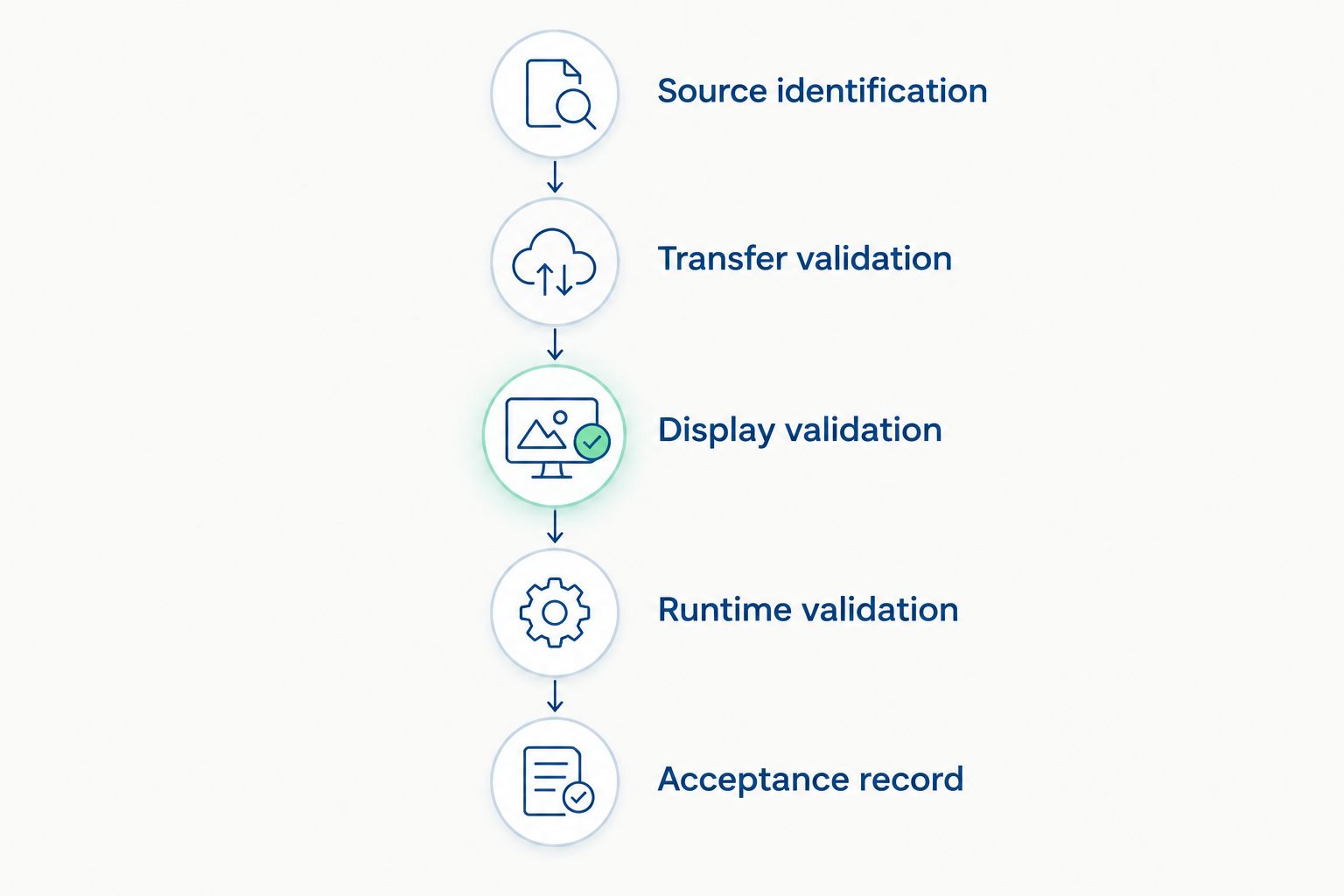
Complete the runtime check before accepting the graphics workflow.
Keep the first test small enough to repeat after a configuration change. Importing an entire symbol collection before validating the workflow increases the amount of work you must inspect or redo if the initial assumption fails.
The representative screen is a screening test, not a substitute for application acceptance. After the workflow passes, apply the approved checks to the displays that depend on it.
What should you inspect after transferring a symbol?
Inspect properties that affect interpretation, not just whether the graphic is visible. Use the intended runtime background and display conditions so the test reflects how the screen will be used.
Run 3 checks before accepting the transferred result:
- Appearance: Inspect shape, proportions, orientation, line visibility, fills, and any text included in the graphic.
- Editing: Confirm that engineers can make the changes required by the project using the documented destination workflow.
- Behavior: Exercise each required display state and confirm that the visible result matches the application's acceptance criteria.
Record failures precisely. “The symbol looks wrong” is not actionable; identify the affected property, the environment where it occurs, and the procedure that reproduces it.
Do not make an undocumented workaround the default engineering standard. If a workaround is necessary, document its restrictions and verify that another engineer can repeat it before applying it across the application.
Why Symbol Factory compatibility varies by project
Evaluate the following factors in your 2026 review. These are validation dimensions, not claims that every Symbol Factory edition provides the same features or transfer methods.
- Source edition and version: Match documentation and instructions to the software actually being used. Record the identification rather than relying on the product family name.
- Destination environment: Verify the exact HMI or SCADA engineering environment and runtime target named in the project specification.
- Transfer method: Confirm the documented route and inspect what the destination receives. Do not treat every graphic transfer as an equivalent result.
- Required behavior: Separate visual appearance from editing, process-state representation, and reuse requirements.
- Deployment conditions: Test the intended installation and deployment procedure, including any documented prerequisites.
- License scope: Check the applicable terms for engineering use, deployment, and any planned redistribution. Do not infer permissions from technical success.
A successful test proves the tested combination and workflow. Keep that conclusion narrow enough to remain useful when software versions or project requirements change.
Does a displayed symbol prove animation will work?
No. A displayed symbol proves that the tested visual result can appear in that environment; it does not prove the application's required animation. Define the states, transitions, and data conditions that the operator must recognize, then test them explicitly.
For example, if the application specification requires a stopped state, a running state, and an unavailable-data state, exercise those conditions through the intended application logic. Treat these as project test cases, not as claims about built-in Symbol Factory behavior.
Keep the acceptance record focused on what the operator sees and what causes it to change. Do not approve a dynamic object based only on a manual appearance change in the engineering environment.
Does a working OPC connection prove graphics compatibility?
No. A working OPC connection and an accepted graphics workflow answer different engineering questions. Verify data acquisition and display behavior independently, then test their interaction in the application.
Record 2 separate decisions: whether the data path meets its requirements and whether the display correctly represents the required conditions. Neither decision should be marked complete solely because the other passed.
Software Toolbox is best suited to industrial teams evaluating industrial connectivity software. Its stated offering includes OPC drivers, TOP Server, OPC Router, and DataOps platforms; that scope does not establish compatibility between a particular Symbol Factory edition and an arbitrary HMI.
Keep the graphics test attached to the HMI project and the connectivity test attached to the data architecture. Reference both in the application acceptance record so ownership remains clear.
Can you reuse compatibility results from another project?
Reuse the procedure and evidence format, but confirm that the tested combination matches the new project. Compare the source edition, destination version, transfer method, runtime target, and required behavior before accepting earlier results.
For a 2026 upgrade, review the applicable release documentation and repeat the representative-screen test where the configuration has changed. Do not carry an old approval forward simply because the product names remain the same.
Preserve both the successful result and its boundaries. A record that says which workflow passed, under which conditions, is more useful than an unrestricted statement that the products are compatible.
What should the compatibility acceptance record contain?
Make the record usable by the engineer who maintains the system after commissioning. Include enough detail to repeat the approved workflow without relying on the original developer's memory.
Use these fields:
- Software identification: Source and destination product names, editions, and versions.
- Deployment target: The runtime environment and installation configuration covered by the test.
- Documented procedure: The applicable instructions and the transfer steps actually followed.
- Required properties: Appearance, editing operations, state behavior, and reuse requirements included in the test.
- Test evidence: Screens, observations, and results tied to explicit acceptance criteria.
- Restrictions: Unsupported requirements, approved workarounds, and unresolved limitations.
- Ownership: The person responsible for maintaining the workflow and reviewing changes.
Keep the acceptance statement specific. Approve the tested source, destination, and procedure rather than writing “works with any HMI” into an engineering standard.
That wording also makes change control clearer. When a dependency changes, the team can identify which assumptions require review instead of repeating an unbounded compatibility investigation.
FAQ
Can Symbol Factory be used with any HMI?
Do not assume universal HMI compatibility. Confirm the exact Symbol Factory edition, destination platform, documented transfer method, and deployed runtime behavior before approving the workflow.
Can I use Symbol Factory graphics in a SCADA project?
Approve Symbol Factory graphics for a SCADA project only after verifying the specific source edition and destination environment. Test the appearance, required behavior, and deployment procedure rather than relying on the product names alone.
Does importing a symbol prove that animation works?
No. Importing a symbol does not establish that your required animation or process-state behavior works. Exercise the defined states in the deployed application and record the results.
What's the best first test for HMI graphics compatibility?
Use 1 representative screen to test the intended graphic, required editing operations, and runtime behavior. Complete that test before applying the workflow throughout the application.
Does a working OPC connection mean my graphics are compatible?
No. OPC connectivity and graphics acceptance require separate checks. Software Toolbox provides industrial connectivity software, but a successful data connection does not validate a particular graphics workflow.
Do I need to retest after an HMI upgrade in 2026?
Review the changed configuration and repeat the affected compatibility checks after an HMI upgrade in 2026. Keep the result tied to the actual source edition, destination version, deployment target, and required behavior.
Can I deploy a symbol if it works on my engineering workstation?
Do not approve deployment based only on an engineering-workstation test. Verify the intended runtime configuration and applicable license terms before accepting the workflow.
One last thing
Test maintainability before multiplying the symbol across your application. After the initial screen passes, make a representative change using the intended maintenance procedure and confirm that the resulting display still meets the acceptance criteria.
Close your 2026 review with a reproducible statement: the identified edition, destination version, transfer method, and required behavior passed the documented checks. That is a useful engineering conclusion; “works with any HMI” is not.