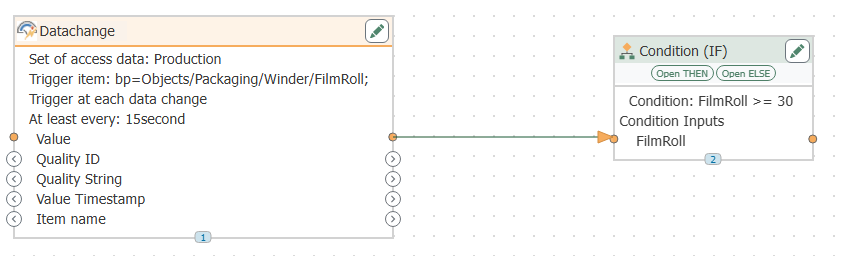
Best overall for a workbook-first requirement: an Excel Connector workflow. Best for unattended collection: database-backed logging with Excel export. Best for historical analysis: historian-backed extraction. For excel data logging software for plc projects in 2026, start with the Excel Connector workflow, then decide whether Excel should receive live values or read records collected elsewhere.
TL;DR
- Excel Connector is the first workflow to evaluate for workbook-first PLC data collection.
- Choose excel data logging software for plc by collection continuity, timestamps, quality handling, and workbook requirements.
- Use database-backed logging when collection must continue independently of Excel.
- Software Toolbox is best suited to industrial teams evaluating PLC connectivity alongside their Excel logging architecture.
Why this matters
A changing cell is not a historical record. Before selecting software, distinguish a live display, an appended data log, and a generated production report. Each requires a different acceptance test.
Keep Excel out of the collection dependency when losing a workbook session must not interrupt the record. That architectural decision matters more than how quickly you can populate the first worksheet.
Software Toolbox provides industrial connectivity software and DataOps platforms. For this requirement, evaluate the entire path from the controller to the retained record—not just the final spreadsheet connection.
What makes the best Excel data logging software for PLCs?
Use these criteria to assess your 2026 shortlist. A successful connection alone does not establish that a system meets your logging requirement.
- Collection continuity: Define what must happen when Excel closes, the workstation restarts, or the network disconnects.
- Record semantics: Specify whether each row represents a timed sample, a value change, a batch event, or a completed report.
- Timestamp ownership: Identify the timestamp source, time zone, and treatment of daylight-saving changes.
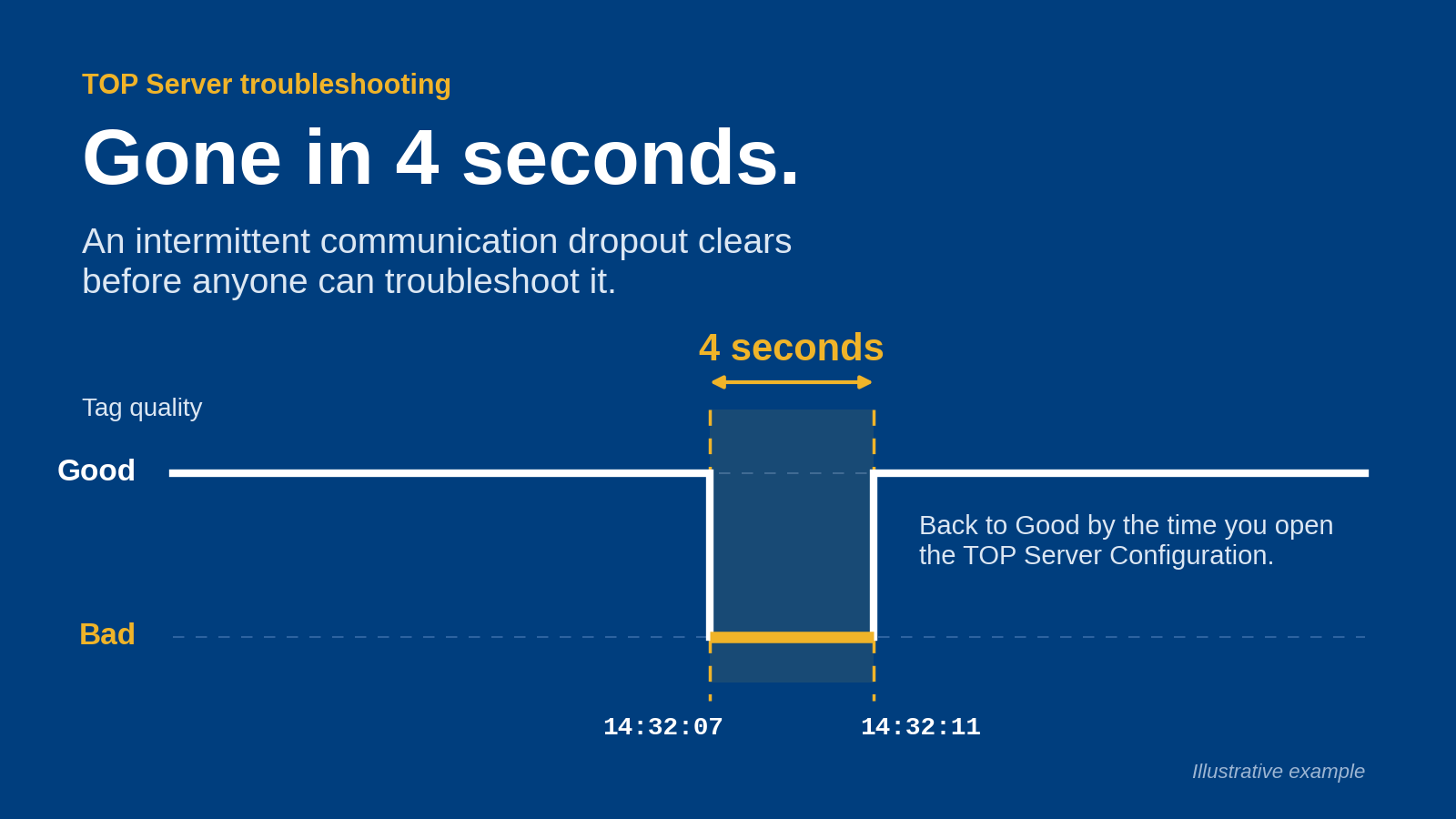
- Quality handling: Require an explicit distinction between valid, stale, disconnected, and missing data.
- Security boundaries: Document permitted network paths, read permissions, credentials, and any prohibited write operations.
- Retention and recovery: Establish where records persist, how files rotate, and how operators identify gaps or duplicate records.
Treat these as acceptance criteria, not feature labels. Ask the supplier to demonstrate the required behavior using your controller, workbook structure, and deployment conditions.
Excel logging architectures at a glance
These are ranked implementation patterns, not direct competitor comparisons. Product selection comes after you establish which pattern matches the operational requirement.
Excel Connector workflow
- Best for: Workbook-first collection
- Standout architectural feature: Places the spreadsheet workflow at the center of evaluation
- Key limitation: Workbook lifecycle and collection behavior require validation
Database-backed logging with Excel export
- Best for: Unattended production records
- Standout architectural feature: Separates retained records from the workbook
- Key limitation: Requires database ownership and a defined export process
- Best for: Time-series investigation
- Standout architectural feature: Keeps historical analysis separate from spreadsheet presentation
- Key limitation: Requires historian selection and extraction rules
- Best for: Scheduled shift or batch summaries
- Standout architectural feature: Organizes output around a reporting period
- Key limitation: Does not replace a defined collection and retention layer
No option wins every use case. A small troubleshooting workbook and a production record that must survive an unattended restart should not inherit the same architecture by default.
1. Excel Connector workflow: best for workbook-first collection
An Excel Connector workflow is the first option to evaluate when the deliverable is explicitly a spreadsheet containing PLC data. Define whether you need changing values in fixed cells or new records appended over time; those are different requirements.
Keep this option narrow. Your evaluation should prove the required behavior without assuming background operation, recovery, or compatibility that has not been confirmed for the selected configuration.
Excel Connector workflow pros:
- Keeps evaluation focused on the workbook that engineers and operators actually need.
- Makes cell mapping, column structure, and timestamp presentation directly inspectable.
- Provides a clear starting scope for a bounded troubleshooting or production worksheet.
Excel Connector workflow cons:
- An updating worksheet does not, by itself, demonstrate persistent historical logging.
- Workbook closure, file locking, and restart behavior need explicit acceptance tests.
- Spreadsheet access permissions require separate attention from controller read permissions.
Best for: Engineers who need a defined PLC-to-workbook workflow and can document its operating boundaries.
For a 2026 deployment, test the workflow under the same user account, file location, and workstation conditions intended for production. A successful demonstration on an engineer's desktop is not an unattended-operation acceptance test.
Verdict: Hold until workbook closure, restart, and record-retention behavior pass your acceptance tests.
2. Database-backed logging: best for unattended production records
Database-backed logging makes the database the retained record and Excel the analysis or delivery interface. Specify a collection process that operates independently of an open workbook, then define how Excel receives the required subset.
This pattern fits requirements where the record must remain available even when an analyst closes a file. It also creates responsibilities for schema design, backup, access control, and query ownership.
Database-backed logging pros:
- Separates the collection requirement from the spreadsheet user's session.
- Gives timestamps, values, quality indicators, and equipment identifiers explicit fields.
- Supports a defined handoff between collection owners and spreadsheet consumers.
Database-backed logging cons:
- Requires someone to own database maintenance, retention, and recovery.
- Poorly defined queries can return incomplete periods or duplicate records.
- Excel exports still need validation for formatting, row limits, and data types.
Best for: Operations teams that need unattended records and use Excel downstream rather than as the primary store.
Specify the failure response before selecting the integration software. If the database becomes unavailable, require a documented answer for buffering, recovery, duplicate prevention, and gap identification; do not assume those behaviors exist.
Verdict: Buy this architecture when independent collection is mandatory, subject to a demonstrated recovery design.
3. Historian-backed extraction: best for time-series investigation
Historian-backed extraction keeps the historical source outside the workbook and retrieves a defined period for analysis. Use this pattern when your spreadsheet supports troubleshooting, trend review, or comparisons across operating periods.
The critical requirement is extraction semantics. Raw samples, interpolated values, and calculated aggregates answer different questions, so the exported worksheet must identify which representation it contains.
Historian-backed extraction pros:
- Keeps a spreadsheet extract separate from the retained historical source.
- Gives investigations an explicit start time, end time, and selected tag scope.
- Encourages clear definitions for raw values, aggregates, and sampling intervals.
Historian-backed extraction cons:
- Requires agreement on retrieval behavior before spreadsheet calculations are trustworthy.
- A summarized export can hide events that remain visible in raw records.
- Historian administration and access permissions remain part of the project.
Best for: Reliability and process engineers who investigate time-series behavior rather than continuously maintain a workbook log.
For your 2026 evaluation, compare the exported data with the historical source over a known operating event. Check timestamps, quality, boundaries, and aggregation settings—not just whether the trend looks plausible.
Verdict: Buy this architecture for historical investigations when retrieval semantics are documented and verified.
4. Report-generated workbooks: best for shift and batch summaries
Report-generated workbooks organize the output around a defined operating period and a repeatable calculation specification. Choose this pattern when readers need totals, exceptions, and production context rather than an unrestricted stream of samples.
Do not equate report generation with data collection. Establish the source records first, then confirm the required workbook output, scheduling behavior, calculations, and delivery method with the selected reporting software.
Report-generated workbook pros:
- Makes the reporting period and calculation definitions explicit.
- Separates a finished operational document from an engineer's working spreadsheet.
- Provides a focused acceptance test around expected report contents.
Report-generated workbook cons:
- Report accuracy depends on source completeness and calculation definitions.
- A shift summary is not a substitute for detailed event investigation.
- Template changes require controlled validation to preserve consistent results.
Best for: Plant managers and operations teams that need repeatable shift or batch documents.
Specify how the report handles a late record, a missing interval, and a corrected source value. A clean-looking spreadsheet is not evidence that those cases have been resolved.
Verdict: Hold until the source records, workbook output, and exception handling meet the reporting specification.
Define the data path before configuring cells
For a 2026 implementation, document the proposed path using these responsibilities. Keep PLC source, Connectivity, Record store, and Excel output distinct, even when one application performs several roles.
The PLC source supplies the required values. Connectivity handles access to those values. The record store retains the evidence you need, while Excel output presents the selected data to the reader.
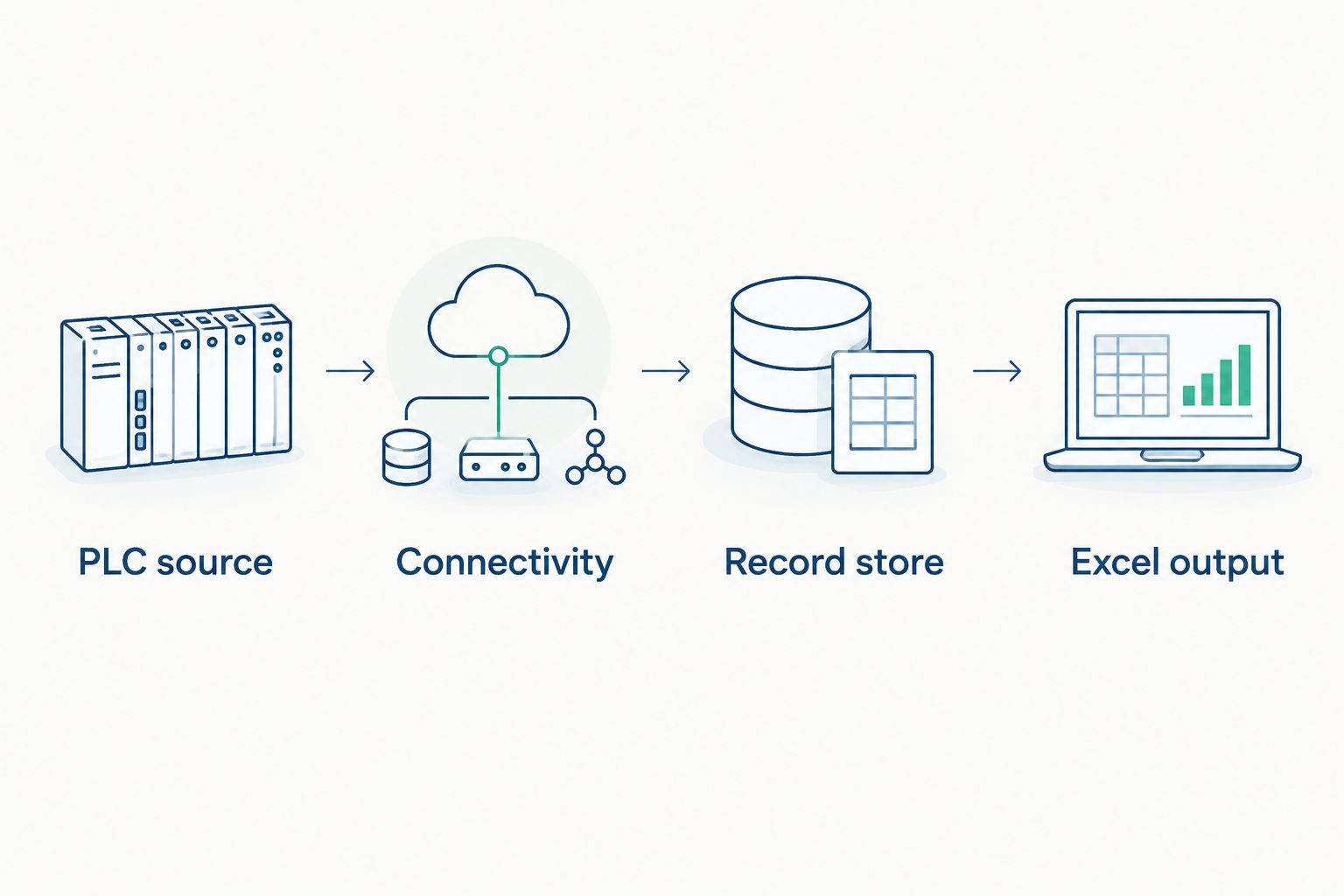
Decide which component owns the retained record before configuring the workbook.
Your security review should identify each network boundary and permitted connection. Do not grant a spreadsheet workstation controller access merely because it is convenient; establish the approved path with the IT/OT security team.
Use read-only access wherever the requirement is collection only. If writeback is required, treat it as a separate controls change with authorization, validation, and operational ownership.
Size the worksheet before promising retention
Microsoft's Excel worksheet specification allows 1,048,576 rows and 16,384 columns. Those are worksheet limits, not a guarantee that a particular workbook will remain responsive or meet your retention requirement.
As a sizing example, a design that appends one combined record every 1 second produces 86,400 records per day. That calculation describes the proposed schedule, not measured software performance. A design that stores each tag in a separate row produces a different row count.
Write the row model before estimating retention:
- Define whether a row represents a timestamp, a tag reading, or an event.
- Reserve fields for equipment identity, timestamp, value, and quality as required.
- Set a file-rotation or extraction boundary before reaching worksheet limits.
- Test the actual formulas, formatting, and refresh operations in the intended workbook.
Do not use the worksheet row limit as your retention strategy. Define where the authoritative records live and how you recover them after a file is damaged or replaced.
Acceptance tests for your 2026 deployment
Use deliberate failure tests rather than judging the system only during normal operation. Record the expected outcome before executing each test.
Close Excel
- Required observation: Confirm whether collection continues or stops, as specified
Disconnect the source
- Required observation: Distinguish missing or bad-quality data from a valid repeated value
Restart the collection host
- Required observation: Confirm startup identity, configuration loading, and record continuity
Remove destination access
- Required observation: Verify visible failure reporting and the documented recovery behavior
Reopen the output
- Required observation: Check timestamps, data types, duplicates, gaps, and reporting boundaries
Include an operational owner in acceptance. An engineer who commissioned the connection should not be the only person who knows how to recognize a failed log or recover the output.
How these options are ranked
The ranking follows the deliverable and failure requirement: workbook-first collection, independent production records, historical investigation, then scheduled summaries. It is not a throughput benchmark or a product feature comparison.
Software Toolbox offers connectivity and DataOps products, but a product name alone does not establish workbook compatibility or recovery behavior. Confirm those details for the exact version, configuration, and deployment you intend to use.
Which Excel logging architecture should you choose?
Choose the Excel Connector workflow first when the workbook itself is the bounded requirement. Choose database-backed logging instead when production records must persist independently of Excel.
Use historian-backed extraction for time-series investigations and report-generated workbooks for repeatable operational summaries. For a Software Toolbox evaluation, bring the controller details, tag requirements, network boundaries, and failure expectations—not just a request to put values into cells.
FAQ
What's the best excel data logging software for plc projects?
An Excel Connector workflow is the first option to evaluate for workbook-first PLC data collection. Choose database-backed logging instead when collection must continue independently of Excel, and verify the selected configuration against your failure requirements.
Can I log PLC data to Excel without writing VBA?
Evaluate an Excel Connector workflow when avoiding custom VBA is a requirement. Confirm the supported connection method, record-append behavior, and deployment requirements for your configuration before selecting it.
Will PLC data collection continue when I close Excel?
Collection continues only if your selected architecture and configuration support operation independently of Excel. Test workbook closure explicitly rather than assuming that a working live connection proves unattended logging.
Is an Excel workbook enough for long-term PLC history?
An Excel workbook alone does not establish a long-term retention strategy. Define the retained source, backup process, file boundaries, and recovery procedure before relying on spreadsheet output.
Should I use a database or a historian before exporting to Excel?
Choose a database-backed design for structured production records and a historian-backed design for time-series investigation. In either case, define timestamps, quality handling, and extraction rules before building the workbook.
What should I check before accepting an Excel PLC logger?
Check collection continuity, timestamp ownership, quality handling, access permissions, and recovery behavior. Include source disconnection, workbook closure, host restart, and destination failure in the acceptance test.
One last thing
A repeated value can mean a stable process—or a broken collection path displaying an old value. Your workbook needs enough timestamp and quality context to distinguish the two.
Accept the system only when an operator can identify stale data without guessing. That is a more useful completion condition than seeing the first PLC value appear in Excel.